Did you ever miss the functionality to perform a full text search in multiple pdf files from the command line in linux?
With the linux command grep one can search for a given text in multiple files. If you don´t know it already you can find some information about grep here. Sadly it can not be used for searching in pdf files, which is certainly an important task. Imagine you have some thousand pdf files archived on your harddrive and you are looking fore some information contained in them. It is far to much work to open each of them in your pdf viewer and search for the needed information. In this situation a tool like grep is quite handy.
A few days ago I found the interesting tool pdfgrep. It works similar to grep, but can search in pdf files. You can download it from SourceForge. Then build pdfgrep from source.
For gentoo users, as usual there is a more easy way. I wrote a simple ebuild for pdfgrep. You can download the ebuild here:
Be sure to include the following line in your /etc/make.conf.
PORTDIR_OVERLAY=”/usr/local/portage”
Afterwards just emerge pdfgrep.
Sadly pdfgrep is not capable of recursively searching complete directory structures like one can do with egrep -r. This would enable one to search complete pdf collections. Not a big problem. Just use the following line of code:
Last year I published the first version of my linux headtracking driver for the VR920 HMD here. Currently I am working on a new driver version which will have the following additional features:
Multiple Protocols: -UDP multicast (as before) -UDP unicast (for flightgear connection and perhaps more) -mouse emulation (via uinput) -joystick emulation (via uinput) -character device for direct angle readings (via cuse, will require a kernel >= 2.6.31)
Inverting of axes (to have moving the head up making the mouse pointer up or down, depending on needs)
Scaling of data (i.e. to match screen size with mouse mode)
Customisable delay between sensor readings
User interface separated from the driver
With the upcoming MPX and the mouse emulation it should be possible to control the visible viewport by turning around the head. Controlling the view for games or other software that do not natively support headtracking should also be possible with the emulation.
In the current development stage most of the features are basically working so expect the new driver to be released soon.
The MeeGo Project has released the version 1.1 for Intel Atom and ARMv7 for Download. MeeGo is the fusion of Intels Netbook OS Moblin and Nokias Maemo. The new Linux distribution is available with three different Desktops.
The Version User Experience (UX) for Netbooks uses the well known GTK Interface of the Moblin distribution. The variant for In-Vehicle Infotainment (IVI) is optimized for in car use. The third variant Handset UX is designed for use with mobile phones and internet tablets. Handset UX should work on N900 Nokia mobile phones and is planned to be installed on the new N9 instead of Symbian-OS.
Over time one collects lots of WEP and WPA keys with mobile devices like nokia´s n800 or n810. Often you want to use these keys with other devices or need them after reinstalling the OS.
For maemo based devices like the n800 and the n810 it is quite easy to recover the previously stored wireless keys, since they are stored unencrypted in gconf. Just open an xterm and enter the following line:
The output you get is a list containing all wireless keys and network names you stored on the device. Note that the output contains the key first and the network name is being displayed a line below the corresponding key.
On my x86_64 gentoo box, running gnome and therefore pulseaudio, I experienced the problem that when and after playing some flash videos (i.e. youtube) the sound device was blocked and no other application was able to play sound. After killing the plugin sound worked just normal, but that was no convenient way.
64-bit flash plugin for Firefox
My first suspective was the 32-Bit flash plugin I used in my 64-bit Firefox until now. So I replaced it by the new 64-bit plugin, which did not solve the problem, since it does also not use pulseaudio for playback. But I include the steps for completeness here:
For other linux distributions like Debian, Ubuntu, Redhat or Suse you obviously have to search the appropriate plugin and install it the distribution-specific way. Afterwards you have to remove the 32-bit plugin from nspluginwrapper, which makes 32-bit plugins available for 64-bit firefox:
As I stated before this does not solve the problem, but at least it gives one a 64-bit flash plugin 😉
Make alsa applications use the pulseaudio server
There is a pulseaudio plugin for alsa, which is necessary for playback of alsa sound via the pulseaudio server. So the next step is to install this plugin. For gentoo it is contained in the alsa-plugins package. So for the gentoo way:
emerge alsa-plugins
Afterwards make sure that your /etc/asound.conf contains the following lines:
pcm.pulse { type pulse } ctl.pulse { type pulse } pcm.!default { type pulse } ctl.!default { type pulse }
After restarting alsa everything that is playing sound via alsa now uses pulseaudio via the plugin and the sound device is no more used concurrently. One can playback via pulseaudio after using flash sites or even at the same time. Mission accomplished!
OSS emulation for pulseaudio
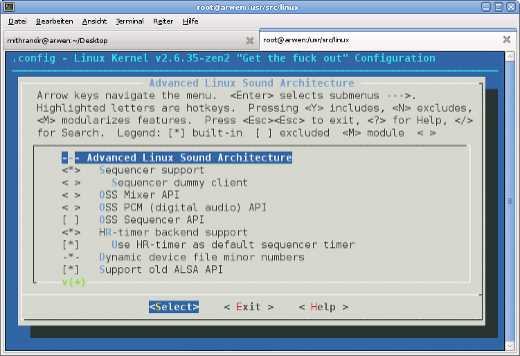
Sadly the above only works for applications directly using the alsa sound system. Applications depending on OSS (i.e. all Java Applications), using the kernel layer alsa oss emulation, still block the audio device, so the the kernel layer OSS emulation is a no go with pulseaudio. Include the corresponding modules in /etc/modprobe.d/blacklist.conf or remove the emulation completely from your kernel configuration.
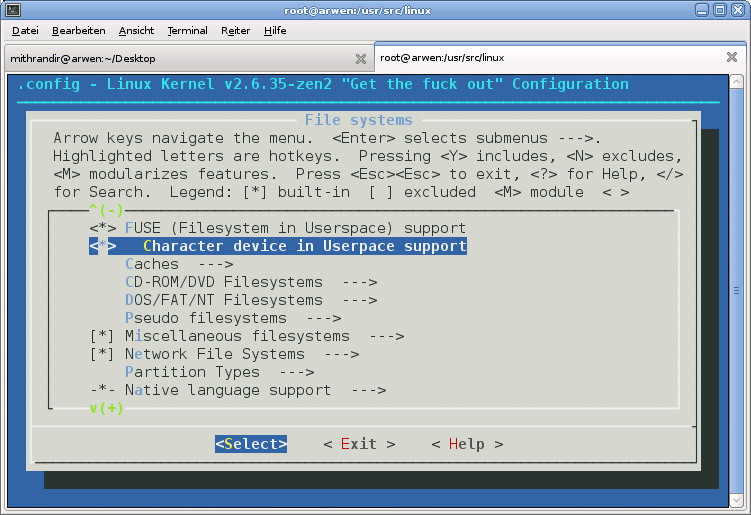
Of course this only shuts off these applications completely but is neccesary for the further steps to work. We´re lucky, we can use a daemon which provides the OSS devices (/dev/dsp, etc.) and links them via fuse to the pulseaudio daemon. For this we need to load the cuse kernel module (add it to /etc/modules.autoload.d/kernel-2.6 and it gets loaded automatically on next reboot) or when not available add the functionality to your kernel configuration and rebuild your kernel.
Now we´re ready to install ossp, the daemon I mentioned before. It is available from Sourceforge, probably also in your distributions package repository. For gentoo users, as usual there is a more easy way. I found an ebuild for ossp on gentoo bugzilla, which I got to work with minor modifications. You can download the modified ebuild here:
For having osspd started automatically on every system boot I lazily included it in my /etc/conf.d/local.start.
echo /usr/sbin/osspd >> /etc/conf.d/local.start
Now sound should just work as one expects it to. Different sources can playback at the same time. No blocked devices occur because of concurrency, no matter which sound API the applications use.
The iptables mirror target I published here and here does not work anymore with kernel version 2.6.35. You can download the newer version for 2.6.35 and probably future kernels here:
It should work with kernels since 2.6.31. To build the module, boot the kernel you want to use the module with. Afterwards unpack the archive, run the compile.sh script and the install.sh script.
Now you may use the mirror target in place of the reject or drop target in the INPUT, FORWARD and PREROUTING chains, like this in your firewall script:
$IPTABLES -A INPUT -j MIRROR
Beware: The use of the mirror target may have strange results, i.e. if you want to connect to the iptables protected machine, you may end up connecting to the local machine without recognizing it. It also may use much bandwith. Worst case: if you have two machines using this module they may end up playing pingpong. So you have been warned, use with caution and at your own risk. For more information see: MIRROR target.
Downloads for older kernel versions are below. Notice the version numbering 2.6.25 works for kernels up to 2.6.27. 2.6.28 also works for 2.6.29 and 2.6.30 kernels.
Did you ever ask yourself how to make your internet tablet more powerful?
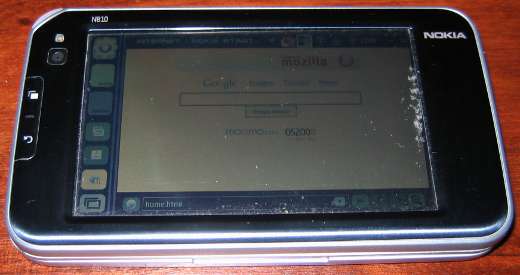
For a Linux based device like Nokias N810 this question is quite easy to answer. You can easily increase overall performance and responsiveness by using a “better” kernel than the stock kernel on your internet tablet. A further advantage is that you can add features that are not available in the stock kernel. Below you will find instructions on how to build your own optimized preemptive kernel or how to install my prebuilt kernel.
 MyGNU.de


![[Valid RSS]](https://validator.w3.org/feed/images/valid-rss.png "Validate my RSS feed")


